
Analytics Guide
Last Chance provides comprehensive analytics to help you understand how subscribers interact with your unsubscribe pages. This guide covers all analytics features and how to use them effectively.
Overview
The Analytics dashboard tracks every interaction subscribers have with your unsubscribe pages, giving you insights into:
- How many subscribers visit your pages
- What actions they take (stay, unsubscribe, pause)
- Why they're leaving (unsubscribe reasons)
- Your overall retention rate
Accessing Analytics
- From the dashboard, click Analytics in the left sidebar
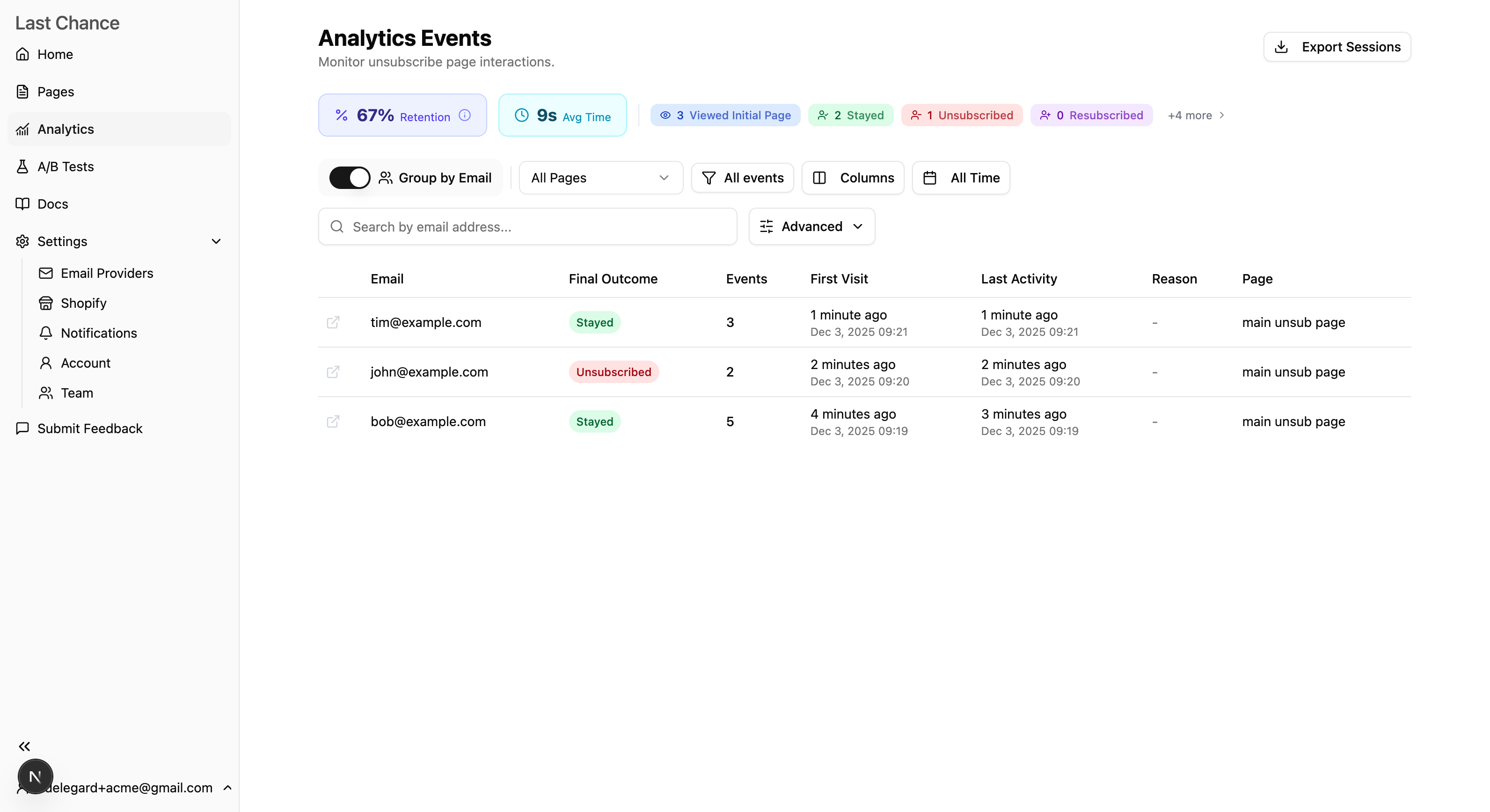
- The Analytics page displays all events and summary statistics
Key Metrics
Retention Rate
The Retention Rate shows what share of unique visitors (subscribers with at least one page visit, identified by email hash) did not unsubscribe in the same scope—your filters on Analytics, or all-time on the dashboard home.
Retention = (Unique visitors − Visitors who unsubscribed) ÷ Unique visitors × 100
The dashboard headline percentage and weekly summary email use this same visitor definition. The Stayed event count in Analytics is how many people clicked “stay”; retention can differ because it includes visitors who never clicked stay or unsub.
If your current Analytics view has no identifiable page visits (for example, the event-type filter excludes PAGE_VISIT), the retention percentage falls back to the legacy ratio: stay events ÷ (stay + unsubscribed events).
Event Types
Last Chance tracks ten types of events:
| Event Type | Icon | Description |
|---|---|---|
| Page Visit | 👁️ | A subscriber visited your unsubscribe page |
| Stayed | ✓ | Subscriber clicked "Stay Subscribed" |
| Unsubscribed | ✗ | Subscriber confirmed they want to unsubscribe |
| Resubscribed | + | A previously unsubscribed user opted back in |
| Shop Button Click | 🛒 | Subscriber clicked a shop/discount link |
| Paused Emails | ⏸ | Subscriber chose to pause emails temporarily |
| Resumed Emails | ▶ | A paused subscriber resumed their subscription |
| Go to Preferences | ⚙️ | Subscriber navigated to preferences page |
| Saved Frequency | 📅 | Subscriber saved their email frequency preference |
| Saved Topics | 🏷️ | Subscriber saved their email topic preferences |
| One-Click Saved Frequency | 📅 | Frequency saved via a one-click preference link from an email |
| One-Click Saved Topics | 🏷️ | Topics saved via a one-click preference link from an email |
Summary Statistics Cards
At the top of the Analytics page, you'll see summary cards showing:
- Retention Rate - Share of unique page visitors in scope who did not unsubscribe (matches dashboard and weekly email)
- Event-specific counts - Total counts for each enabled event type
The cards update dynamically based on your selected filters.
Filtering Analytics Data
Filter by Page
Use the Page dropdown to view analytics for:
- All Pages - Combined data from all unsubscribe pages
- Specific Page - Data from a single unsubscribe page
Filter by Date Range
Click the Date Range button to select:
- Last 7 Days - Recent activity
- Last 30 Days - Monthly overview
- Last 90 Days - Quarterly trends
- All Time - Complete history
Filter by Event Type
- Click the Event Types filter button
- Check/uncheck event types to include
- Click Apply to update the view
This is useful for focusing on specific actions, like only viewing unsubscribe events.
Search by Email
To find events for a specific subscriber:
- Enter their email address in the search field
- Click Apply
- All events for that email will be displayed
Note: Email addresses are hashed for privacy. You can search using the original email address.
Segment experience (smart offers)
When you use segment experiences (HTML overrides matched by smart-offer rules), you can slice analytics by which experience a subscriber first landed in during the selected date range:
- Select a specific unsubscribe page in the Page dropdown (required to pick named experiences from that page’s configuration).
- Use the Segment experience control: All experiences, Default (canonical), or a named experience key (for example, VIP).
- Optionally, under Advanced filters, set Smart offer rule ID to narrow results to subscribers whose first page visit in range matched both that experience and that rule. Press Enter to apply.
This filter is session-scoped: every event row shown belongs to subscribers whose first PAGE_VISIT in the range matched the filter. You will see their full journey (stayed, paused, unsubscribed, etc.), not only rows where that event’s metadata mentions the experience.
How experience is stored on events
- Page Visit records the experience shown on load when smart-offer rules apply.
- Later actions (stay, unsubscribe, pause, and others) record experience metadata by re-evaluating smart-offer rules at the time of the action (using the same context as the live page: orders, visits, etc.). If subscriber context changes between load and click (for example, a new order syncs), the action event may show a different experience than the original page visit. The segment filter above is still based on first visit in range, not on action-time metadata.
Preview mode
Editor and email preview flows do not write production PAGE_VISIT analytics. Only live traffic on the public unsubscribe URL is tracked.
Advanced Filters
Additional filter options are available:
| Filter | Description |
|---|---|
| Klaviyo ID | Filter by Klaviyo profile ID |
| Email Message ID | Filter by specific email message |
| Campaign ID | Filter by Klaviyo campaign |
| Flow ID | Filter by Klaviyo flow |
| Smart offer rule ID | Optional; narrows segment experience filter to a specific rule id on the first qualifying page visit |
Click any ID in the table to quickly filter by that value.
Unsubscribe Reasons
When subscribers unsubscribe, they can provide a reason. Last Chance aggregates this feedback in the Unsubscribe Reasons section.
Viewing Reason Statistics
When the "Unsubscribed" event type is enabled, you'll see a breakdown of:
- Each reason selected
- The count and percentage of each reason
- A visual progress bar for comparison
Default Reason Options
Common unsubscribe reasons include:
- I receive too many emails
- The content isn't relevant to me
- I never signed up
- I'm switching to a different service
- Other (with free-text input)
Viewing "Other" Responses
If subscribers select "Other" and provide custom text:
- Find the Other reason in the statistics
- Click the View Details button
- A dialog shows all custom responses
This qualitative feedback can help you improve your email strategy.
Events Table
The main events table shows detailed information about each interaction.
Table Columns
| Column | Description |
|---|---|
| External Link | Opens the subscriber's Klaviyo profile (if available) |
| Time | When the event occurred (relative and absolute) |
| Event | The type of event with color-coded badge |
| Email Hash | Truncated hash of the subscriber's email |
| Reason | Unsubscribe reason (if applicable) |
| Page | Which unsubscribe page was used |
Hidden Columns
Additional columns can be shown via the Columns button:
- Klaviyo ID - The subscriber's Klaviyo profile ID
- Flow ID - The Klaviyo flow that sent the email
- Campaign ID - The Klaviyo campaign that sent the email
- Email Message ID - The specific email message ID
- Referrer - The referring URL
Interacting with Table Data
- Click a row - Opens a detailed side drawer showing the complete session timeline
- Click a Klaviyo ID - Filter by that profile
- Click a Flow ID - Filter by that flow
- Click a Campaign ID - Filter by that campaign
- Click External Link - Open the profile in Klaviyo
Session Details Drawer
When you click on any row in the events table, a side drawer opens showing detailed information about that subscriber's session:
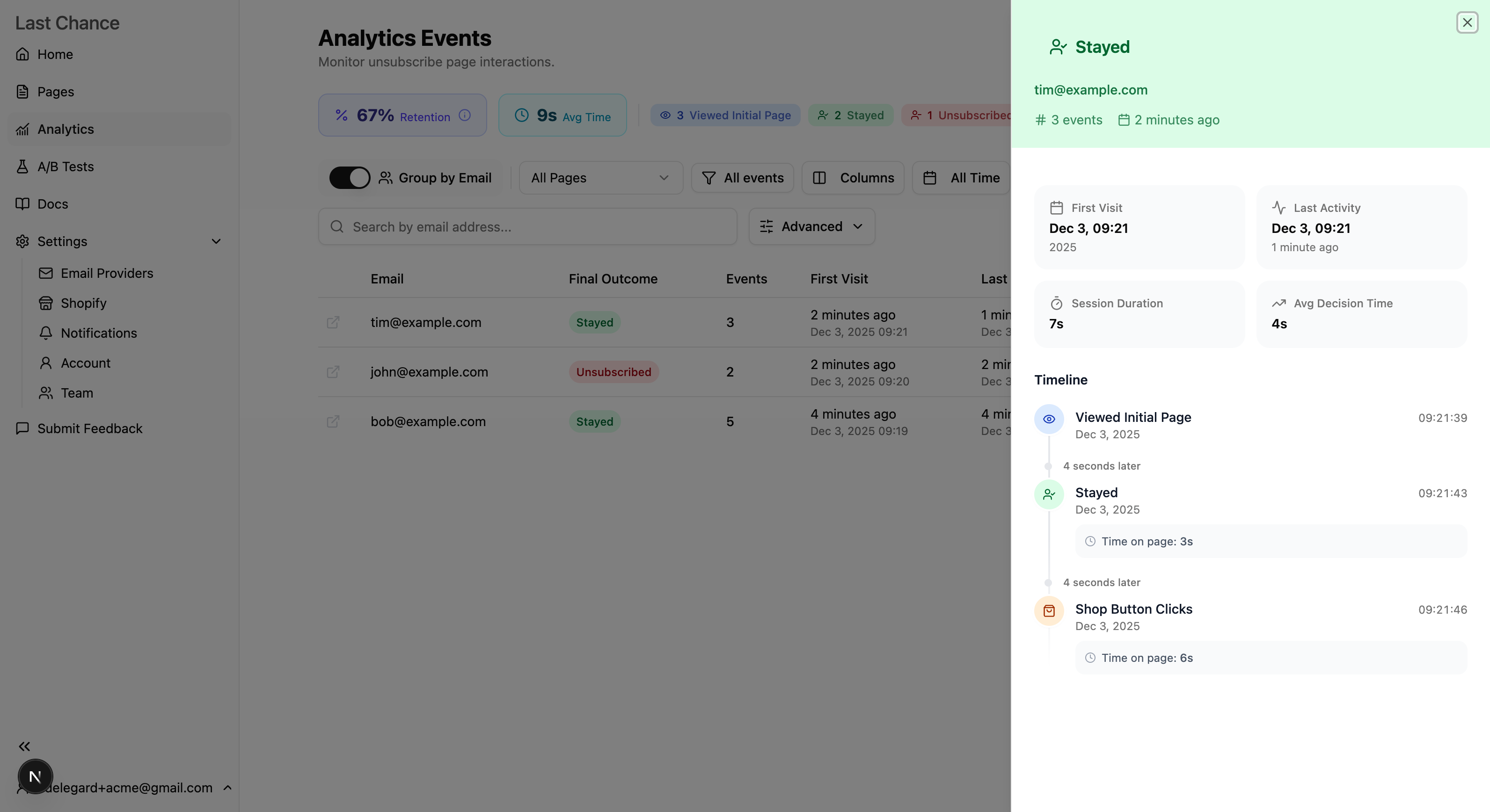
The drawer displays:
- Outcome - The final action taken (Stayed, Unsubscribed, etc.)
- Event Count - Total number of events in the session
- Timeline - Chronological list of all events with timestamps
- Session Metrics - Duration, decision time, and other key metrics
- Event Details - Time on page and other context for each event
This detailed view helps you understand the complete customer journey through your unsubscribe page.
Exporting Data
Export your analytics data for further analysis:
- Apply any filters you want
- Click Export CSV in the header
- A CSV file will download with all matching events
The export includes all columns (not just visible ones):
- Time
- Event Type
- Email Hash
- Reason
- Reason Other (custom text)
- Page Name
- Klaviyo ID
- Email Message ID
- Campaign ID
- Flow ID
- Experience key and Smart offer rule ID (when present on that event; action events use re-evaluated smart-offer context at click time)
- Metadata (JSON) - Additional event-specific data:
- For Saved Frequency:
frequency(selected frequency value),timeOnPageMs - For Saved Topics:
topics(comma-separated list),topicsCount,topicSelectionMode(SINGLEorMULTIPLE— page configuration at time of save),timeOnPageMs - For Go to Preferences:
timeOnPageMs,fromPage(page they came from)
- For Saved Frequency:
Pagination
For large datasets:
- Use Previous and Next buttons to navigate
- The page shows 25 events at a time
- Total event count is displayed at the bottom
Use Cases and Best Practices
Track Campaign Performance
- Send an email campaign
- Note the Campaign ID from Klaviyo
- Filter analytics by that Campaign ID
- See how many recipients visited your unsubscribe page
- Analyze retention rate for that specific campaign
Identify Problem Flows
- Filter by Flow ID
- Compare retention rates across different flows
- Flows with lower retention may need content improvements
Monitor Discount Effectiveness
- Filter for Shop Button Clicks
- Compare to total Page Visits
- Calculate click-through rate on your discount offer
- Adjust discount value or messaging based on results
Track Preference Adoption
- Filter for Go to Preferences events to see how many subscribers explore preferences
- Compare Saved Frequency and Saved Topics counts
- Analyze which frequency and topic options are most popular
- Use metadata to see time spent on preferences page
- Identify opportunities to improve preference options
Gather Customer Feedback
- Review unsubscribe reasons weekly
- Look for patterns in "Other" responses
- Use feedback to improve email content and frequency
A/B Test Page Designs
- Create two unsubscribe page versions
- Use one page for half your flows, another for the rest
- Filter analytics by page
- Compare retention rates to determine the winner
Understanding Your Data
Healthy Benchmarks
While results vary by industry, here are general guidelines:
| Metric | Good | Great |
|---|---|---|
| Retention Rate | 20%+ | 40%+ |
| Shop Button CTR | 5%+ | 15%+ |
| Reason Response Rate | 60%+ | 80%+ |
Common Patterns
High Page Visits, Low Actions
- Subscribers may be confused by the page
- Try simplifying the design or CTAs
Low Retention Rate
- Consider offering a better discount
- Add pause options
- Improve the "stay subscribed" messaging
Many "Too Many Emails" Reasons
- Review your email frequency
- Highlight pause options more prominently
- Let subscribers manage preferences
High "Content Not Relevant" Reasons
- Review your segmentation strategy
- Add list preference options
- Consider more personalized content
Troubleshooting
No Events Appearing
- Verify your page is published
- Verify the Klaviyo unsubscribe hosted page is configured correctly
- Allow time for events to sync (usually real-time)
Missing Subscriber Information
- Verify the Klaviyo unsubscribe hosted page is passing all required parameters
- Check that your Last Chance page is receiving traffic from Klaviyo
Retention Rate Seems Wrong
- Retention is based on unique visitors (email hashes with a
PAGE_VISITin scope), not raw event volume - If you filter out
PAGE_VISIT, you may see the legacy stay ÷ (stay + unsubscribed) ratio instead - Compare with the Stayed count: many visitors can be retained without ever clicking stay
Next Steps
- Getting Started Guide - Set up your first page
- Retention Health - Score your Klaviyo flows and segments against best practices
- Churn intelligence - At-risk segments, profile sync, and draft flows in Klaviyo
- Team Management - Share analytics with your team
- Billing & Account - Understand your subscription tier