
A/B Testing
A/B testing allows you to compare different unsubscribe page designs to optimize subscriber retention. Test multiple variants simultaneously and use data-driven decisions to choose the best performing page.
Overview
With A/B testing, you can:
- Compare page designs: Test different layouts, copy, offers, and colors
- Measure retention rates: See which variant keeps more subscribers
- Get statistical significance: Know when you have enough data to declare a winner
- Automatically promote winners: Set the winning page as your primary page
Creating an A/B Test
Step 1: Prepare Your Pages
Before creating an A/B test, you'll need at least 2 unsubscribe pages to compare. Create your test variants:
- Go to Pages in the sidebar
- Create a new page or duplicate an existing one
- Make the changes you want to test (design, copy, offers)
- Repeat for each variant you want to test
If you don't have enough pages yet, you'll see a message prompting you to create more:
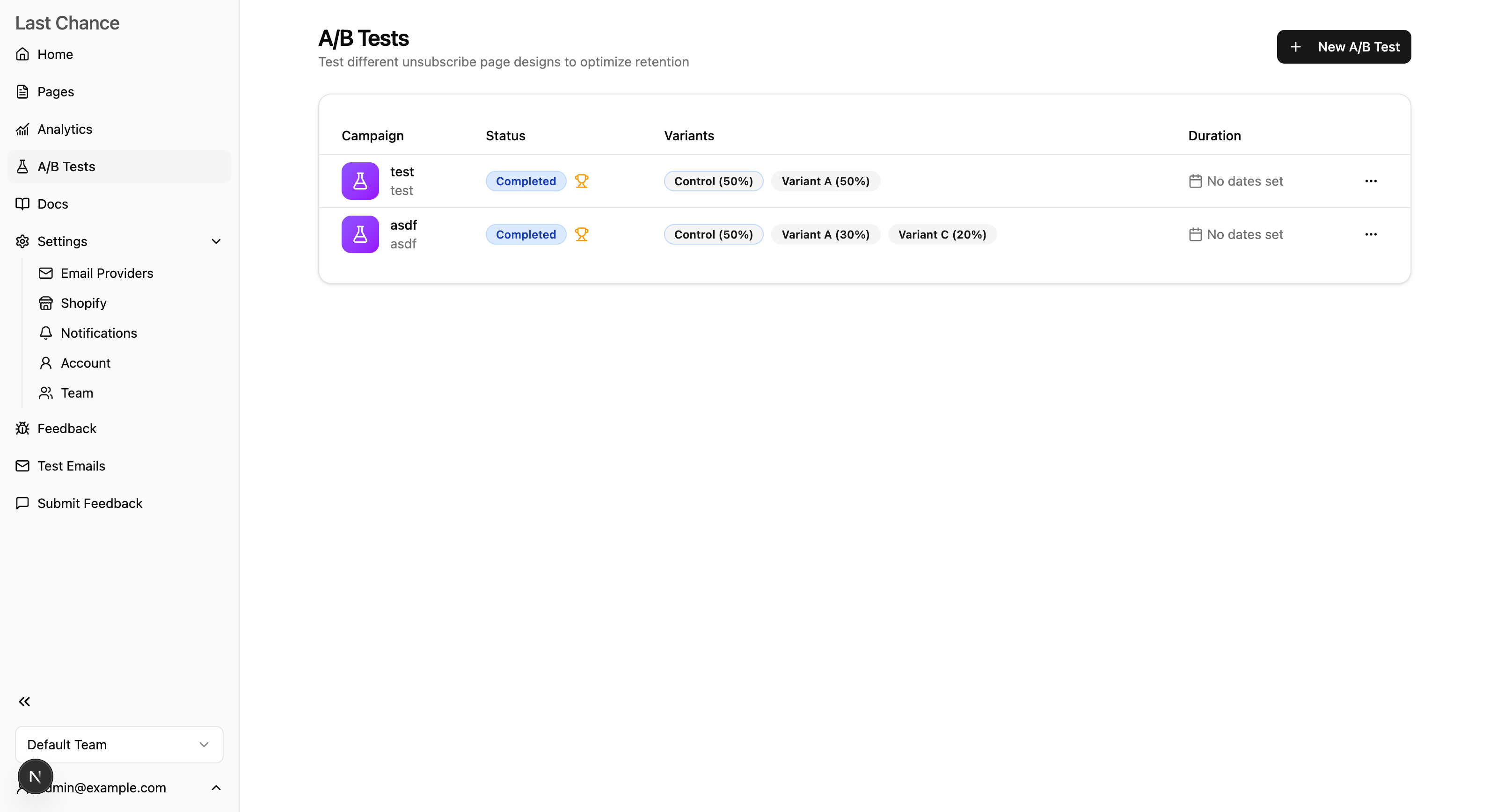
Step 2: Create the Campaign
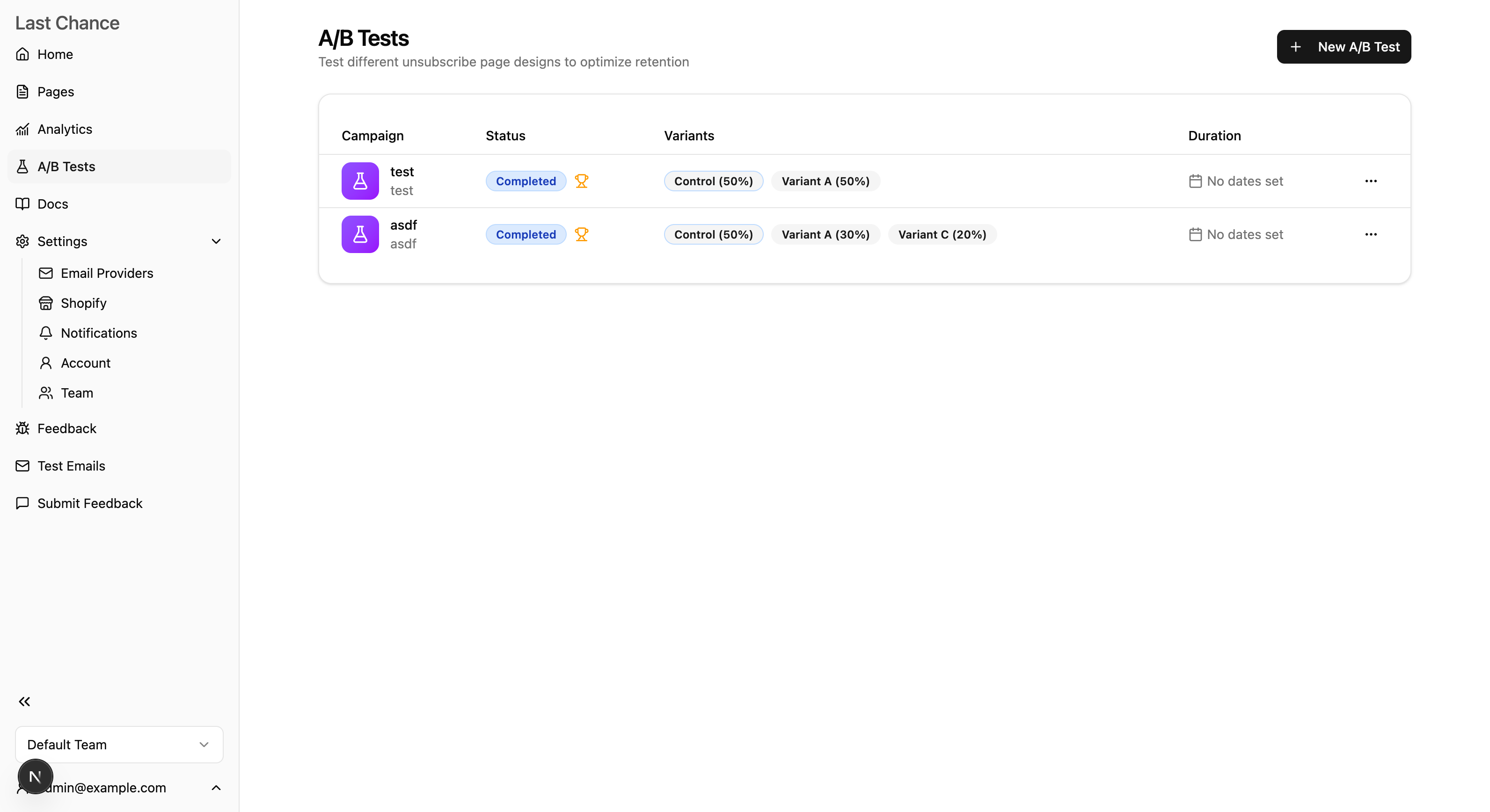
- Go to A/B Tests in the sidebar
- Click New A/B Test
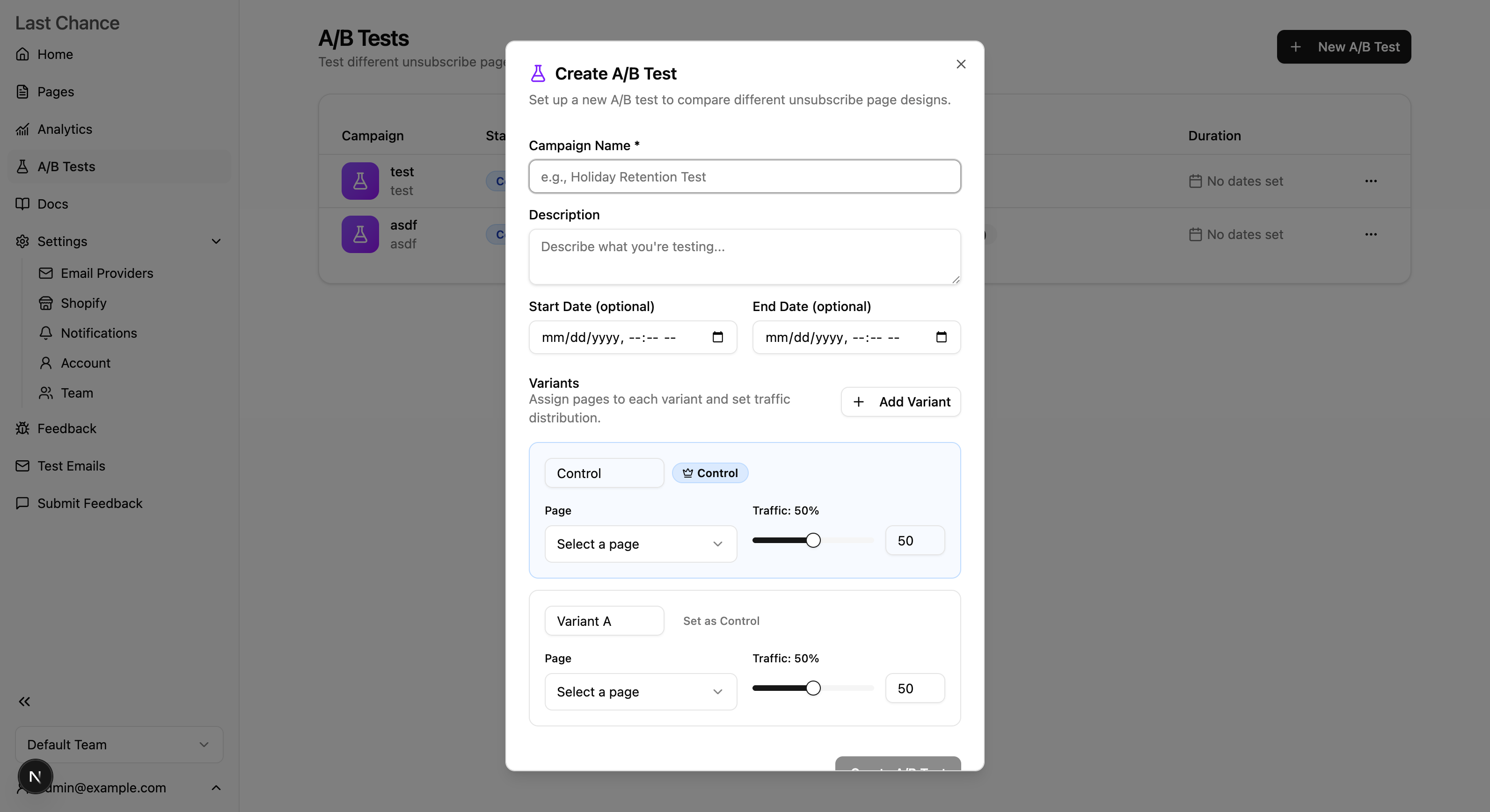
- Fill in the campaign details:
- Name: A descriptive name (e.g., "Holiday Discount Test")
- Description: What you're testing (optional)
- Start Date: When to begin the test (optional - leave blank to start manually)
- End Date: When to end the test (optional - leave blank to run indefinitely)
Step 3: Configure Variants
Add at least 2 variants to your test:
- Control variant: Your current/baseline page (marked with a crown icon)
- Treatment variants: The new pages you're testing
For each variant:
- Select the unsubscribe page
- Set the traffic weight (percentage of visitors who see this variant)
- The total must equal 100%
Tip: For a simple 50/50 test, give each variant 50% traffic. For more conservative testing, give the control 80% and the treatment 20%.
Step 4: Start the Test
Click Create A/B Test to save your campaign in draft mode. When you're ready:
- Review your variant configuration
- Click Start Test to begin
- Visitors will now be randomly assigned to variants
How Visitor Assignment Works
A/B testing uses deterministic assignment based on visitor email:
- The same visitor always sees the same variant (consistent experience)
- Assignment is calculated using a hash of the email address
- Weights are applied probabilistically across all visitors
- No cookies or local storage required
This ensures accurate measurement and a seamless user experience.
Understanding Results
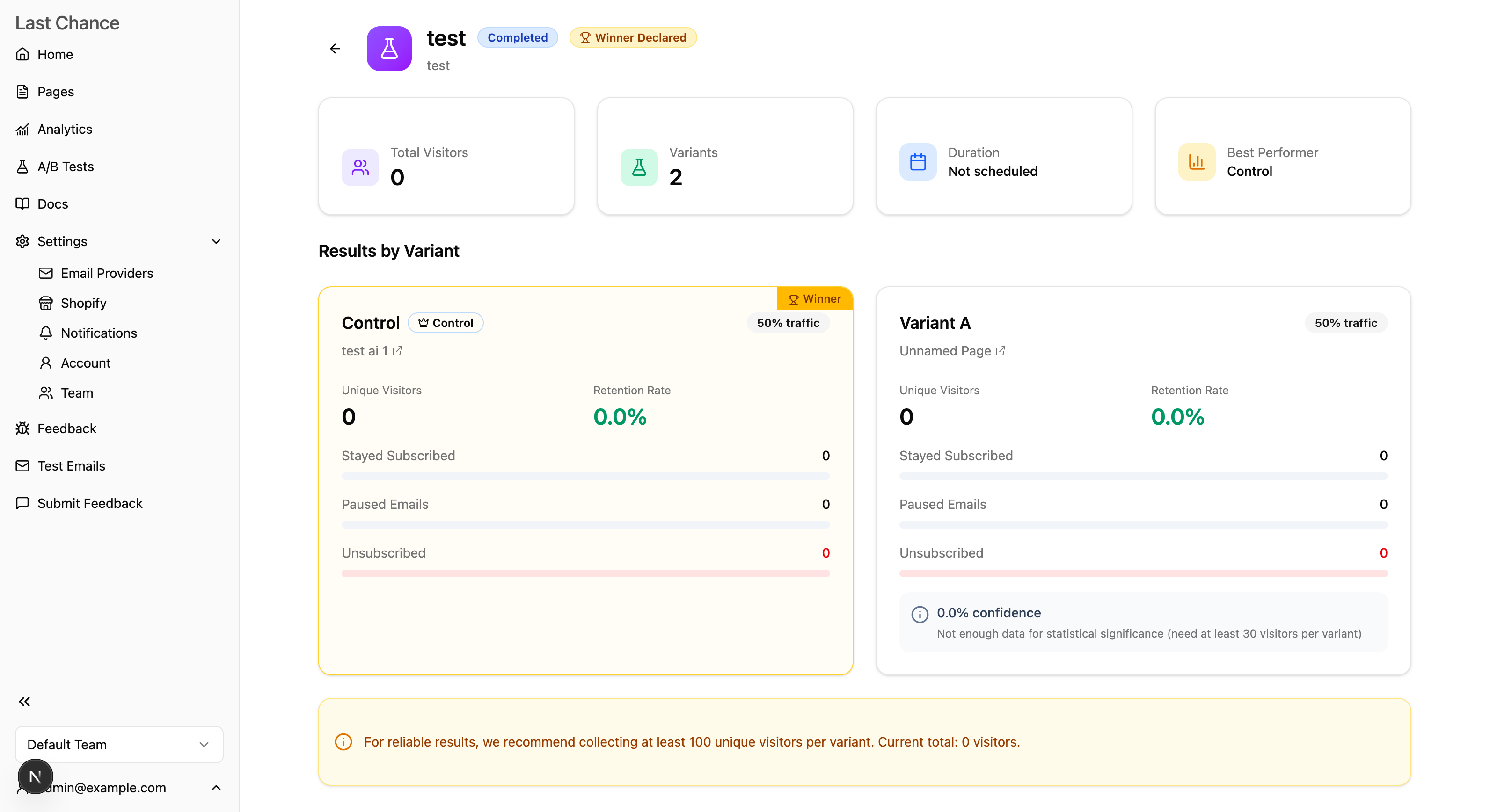
Key Metrics
For each variant, you'll see:
| Metric | Description |
|---|---|
| Unique Visitors | Number of people who saw this variant |
| Retention Rate | % who took an explicit positive action (stayed, paused, updated preferences, resumed, resubscribed) |
| Stayed | Clicked "Stay Subscribed" |
| Paused | Chose to pause emails temporarily |
| Updated Preferences | Updated email frequency or topics |
| Unsubscribed | Left your email list |
Statistical Significance
The results page shows confidence levels:
- < 95% confidence: Not enough data yet - keep the test running
- 95%+ confidence: Statistically significant - you can trust the results
- Uplift: How much better/worse than control (e.g., "+15% retention")
Recommendation: Aim for at least 100 unique visitors per variant before making decisions.
Reading the Results
A successful variant will show:
- Higher retention rate than control
- 95%+ statistical confidence
- Positive uplift percentage
Declaring a Winner
When you have statistically significant results:
- Go to the A/B test detail page
- Review the metrics for each variant
- Click Declare as Winner on the best-performing variant
- Confirm the action
When you declare a winner:
- The test is marked as Completed
- The winning page becomes your Primary unsubscribe page
- All visitors will now see the winning page
Campaign Lifecycle
| Status | Description |
|---|---|
| Draft | Not started, can still edit variants |
| Active | Running and collecting data |
| Paused | Temporarily stopped, can resume |
| Completed | Finished with a declared winner |
Managing Active Tests
- Pause: Temporarily stop the test while keeping data
- Resume: Continue a paused test
- Complete: End the test without declaring a winner
Note: Only one A/B test can be active at a time per team.
Best Practices
What to Test
Good candidates for A/B testing:
- Headlines: "Before you go..." vs "Wait! Special offer inside"
- Discount amounts: 10% off vs 20% off
- Page design: Minimalist vs feature-rich
- CTAs: "Stay Subscribed" vs "Keep Getting Deals"
- Pause options: Offering pause vs not offering pause
Test Duration
- Minimum: Run until you have 100+ visitors per variant
- Recommended: 2-4 weeks for most email lists
- Maximum: Don't run tests indefinitely - make decisions
Sample Size
Statistical significance depends on:
- Number of visitors per variant
- Difference in retention rates
- Your confidence threshold (default: 95%)
Use the significance indicator in results to know when you have enough data.
One Change at a Time
For clear results, test one variable at a time:
✅ Good: Testing discount amount (10% vs 20%) ❌ Bad: Testing discount + headline + colors simultaneously
If you test multiple changes, you won't know which caused the difference.
Notifications
You'll receive email notifications for:
- Test started: When a new A/B test begins
- Significant results: When a variant reaches statistical significance
- Test completed: When a winner is declared
Manage these in Settings > Notifications.
FAQ
Can I edit a running test?
No. Once a test is active, variants are locked to ensure data integrity. To make changes, pause or complete the test, then create a new one.
What happens to visitors during a paused test?
They see your primary unsubscribe page (not any test variant).
Can I run multiple tests at once?
No. Only one A/B test can be active at a time to prevent conflicts.
How do I delete a test?
Tests can only be deleted when in Draft, Paused, or Completed status. Active tests must be paused first.
Does A/B testing affect my analytics?
Yes! All events during a test include the campaign and variant IDs, so you can analyze performance in your analytics dashboard.